Showing posts with label Windows 10. Show all posts

Windows 10 will be Free for Windows 7 and Windows 8/8.1 Users

Update: After clarification from Microsoft, it is clear that Pirated Users won’t get the free upgrade.
The world is eagerly waiting for the complete official release of Windows 10. While at first, only licensed users were excited for it but, now even pirated users have something good to wait for. According to Terry Myerson, Microsoft’s Windows chief, the upgraded version of Windows can be used by all genuine and non-genuine users. This means if you are using pirated version of Windows 7 and Windows 8, you can still upgrade to Windows 10. This amazing announcement was made at the WInHEC conference in Shenzhen, China.
The announcement came as a surprise as earlier Microsoft said that PCs running on Windows 7/8.1 will get free upgrades to Windows 10 for the first year but only after the product is released. This decision has surely left many answered questions. One of the biggest question is that whether the pirated users will get the update like the licensed user or he will have to wait for a year. It is confirmed that this plan to allow free upgrades for pirated users applies to all over the world and is not just limited to China.
Windows-10-logo
Although, it should be noted that Microsoft has a long history with software piracy. Windows XP was the first ever operating system which needed license key for verification. However, this concept was soon defeated by using corporate license key which was shared on the internet. Microsoft has tried its best to stop piracy but whenever the company comes up with a new way to stop it, pirates find another way to bypass it. The most shocking thing is that many new machines comes with a pirated software and the customer don’t have any slight idea that he is actually using an illegal copy.
The company has still not declared any exact date for the release of Windows 10 as even this time they announced that, Windows 10 will be launched in 190 countries and 111 languages around the world this summer. Now, this is interesting as in the Northern part of the world, summer ends on September 21. And, according to this new announcement, the company has only six months to deliver it as free upgrade to millions of users.
There is no doubt in the fact that this is a great news for all the users who enjoy the pirated version of Windows. However, the bigger question which remains unanswered is that, whether Windows is actually trying to stop piracy or promote piracy. Nothing can be said until and unless, the software gets released. Till then we can only say that it seems like Microsoft has finally accepted that it is unable to curb piracy. Now, may be it is some kind of plan or strategy by the company but for pirated users, there cannot be a better news than this.

3 Tricks to Make Your Windows 10 Copy Run Faster

Microsoft has not yet released Windows 10 officially, but a Technical Preview is already out and not much is expected to change in terms of functionality even in final version. So until Microsoft releases the final version, why not we exercise some speed-boosting tricks on this preview so we can make our Windows 10 copies run to their true potential from Day #1. In this article we’ll try some of those tricks.

Disable Useless Animations, Graphics and Shadows

Like most other versions of Windows, Microsoft has loaded plenty of eye-candy in this version too. Disabling some of it will definitely make Windows 10 copy run faster. Given below are the steps that you can follow to do so:
  • In this window click on Advanced tab.
  • Hit Win+R on your keyboard, type sysdm.cpl in that dialog box and hitEnter. This will launch the System Properties window before you.
  • Under this tab there’ll be settings buttons for 3 different groups. Click on the first button under Performance group.
settings button
  • Now uncheck all the checkboxes highlighted by the yellow color in the screenshot given below and hit OK button to save your changes.
disable animations
Once you save these changes, actions associated with them will execute almost instantly without waiting for the completion of that eye-candy animation.

Disable Useless Services

Now let’s disable some useless services that run all the time sucking valuable system resources and thus make Windows run a bit slower than its true potential. There’re several services that’re not too important and can be disabled to boost system performance. For example:
Distributed Link Tracking Client
This service is for computers that’re part of a network, which is found mainly in organizations or colleges. If your computer isn’t part of any network, which is true for most PC users, then you can disable it to make your system run faster.
Print Spooler
This service is used if you’ve a printer. If you don’t have any printer, don’t give it a damn!
IP Helper and Offline Files
Just like first service in our list, if your computer isn’t part of any network then these service are of no use to you.
Remote Registry
This function allows any user to remotely modify your computer’s Windows Registry – only if that person has a user account with Administrator rights! Why would you give them to someone else? So why not disable this service permanently?
To disable any of these services follow the steps given below:
  1. Hit Win+R on your keyboard, type compmgmt.msc  and hit Enter.
  2. A Computer Management window will open up now. In the hierarchy given on left side of this window click on Service and Applications link to expand it, and then click on Services.
  3. This will show you a list of all the services that’re running. Right-click on every service that you don’t want to be running and click on Stop.
  4. Now if you want to disable that service permanently, right-click it once again, click on Properties and select “Disabled” from Startup type menu.
stopping services
That’s it for useless Services!

Disable Useless Startup Programs

Finally, disable some useless startup programs that start with Windows. This will make your computer boot faster. Follow the steps outlined below:
disable startup programs

How to Change Mouse Pointer Size and Color in Windows 10

With the release of Windows 10 coming near everyday, new features and tutorials to do new stuff on the young operating system from Microsoft are coming up. We have already covered many other Windows 10 and older tutorials that might help you in many ways and you can check them out here. In this post I will be walking you through a tutorial that will tell you how to change the mouse pointer size and color in Windows 10.
Without any further ado, let’s start.
The mouse pointer is the most used part of the Windows operating system. Since the start of the Windows setup to actual day to day usage. There are many pointers provided in the Windows OS already but you can also change the pointer size and color that many people don’t know how. We have written a tutorial that will help you do this in Windows 10.

Change Mouse Pointer Size and Color in Windows 10

Follow the steps one by one and don’t skip any step to properly change the pointer color and size.
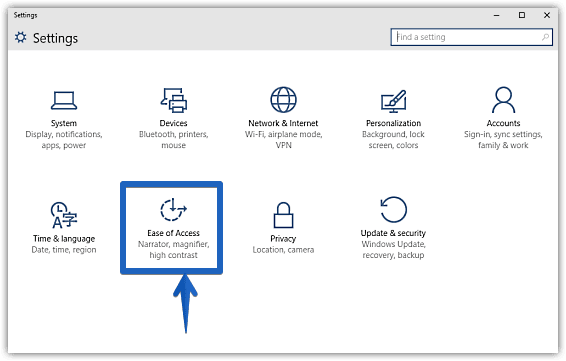
  • Launch the new Modern UI Settings app and look for an option named Ease of Access.
  • Click Ease of Access and this should open a new window with different options.
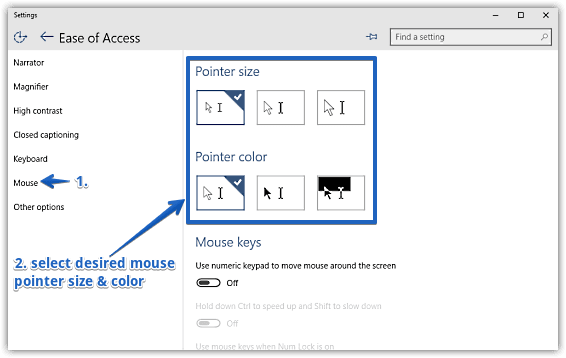
  • Now you will see a bunch of other options in this new screen and on the left hand side of the screen, look for an option named Mouse.
  • Clicking this option will open the Mouse section of the settings and you should now be able to see two other options named Pointer size and Pointer Color.
  • Now you can set your favorite pointer size as well as color from this screen.

Verdict

The mouse pointer as I mentioned above is probably the most used part of the OS and hence it is very necessary that you have the option to customize it as per your needs. This option is actually meant for people who are differently abled but sometimes these options also work very well for other people.
So this was a small tutorial in which we showed you how to change your Windows 10 mouse pointer.

Administrative Features Of Windows 10

Windows 10
Features Of Windows 10
Microsoft unveiled Windows 10 technical preview this October and the company is working hard to make improvements to the operating system. Even though the operating system is in the development stages, Microsoft has revealed the administrative features of the operating system.

According to Microsoft, the company is devising methods to deploy the operating system in a simpler way. The program comes with a runtime configuration tool, which will help the transformation of the device to fully configured business machines without the need of reimaging the operating system.

The features include pushing out the systems that are configured with the Wi-Fi, email profiles, and VPN. In addition, there would be security updates, certificates, enforcement of security policies, language packs, installation of apps and automatic enrollment to MDM services, which include Microsoft Intune or any other third party MDM service. The BYOD scenarios can be handled with this. The advantage of these features is that your laptop need not be configured with work related things and you could store other stuffs in it.
For administrative purposes, the program helps the users to work with the Azure Active Directory, which will help the devices to connect with Azure. All you need to do is login to the Windows with the AAD accounts and this will give you access to the resources and apps stored in it. You may also add the Azure ID for this purpose. When the operating system is connected to Azure, users can login to the cloud services like Office 365, Windows Store, Microsoft Intune etc. This avoids the difficulty of entering the user ID and password on each occasion you try to access these services.
Windows Store
Windows 10 Upgrade


We first saw the MDM support in Windows 8.1. This had helped Windows 8.1 users to manage their tablets, laptops, desktops and Windows Phone devices from a single location. With the new operating system, Microsoft has expanded this MDM support and has added support for managing multiple users, VPN configuration, enterprise data protection policies, control over the Windows Store, full device wipe capabilities etc. The software giant will also allow the business-owned devices to make connections with the system center configuration manager, group policy, active directory etc.
With all the exciting administrative features of Windows 10, it could be one of the best operating systems for business users. The operating system is expected to be released by the mid of next year.


Windows 10 Enables Touch Only When Needed

Windows 10
Windows 10 OS
Joe Belfiore, the corporate vice president of Windows Phone Program Management, said that the company is not giving up on touch for the latest Windows 10 ecosystem. He added that there were a large number of people who were comfortable with the touch less Windows 7 operating system. Meanwhile the latest operating system will also support people who jumped to Windows 8 operating system.
This means that the charms bar would be renovated with the latest ecosystem. The method to open the charms bar is the same, you need to swipe to the right and then it opens. However, the experience with the charms bar has changed recently, says Belforie. While you swipe in from the left, users will find the task view. Touch is implemented in such a way that it enhances the way in which users use the computer.
Currently Microsoft is working on a renovated user interface that is not a part of the latest Windows ecosystem. Anyways, for a two-in-one device, a mode called Continuum will be implemented. This will adjust the PC settings according to whether or not mouse and keyboard are connected to the computer.
In case you disconnect the keyboard, the operating system would automatically open the Windows 8 style UI with the Start menu. There is a back button available in order to help the users go back to the previous screen that the user was working on.  When the mouse and keyboard is not connected to the system, the icons and menus grow out larger. On the other hand, when they are connected, the icon and the menu shrink down. That is, the desktop mode would appear back. The Windows app disappears along with the Start page.
Windows 10 Ecosystem
Windows 10 Features

Myerson stated that the next step for Microsoft would be pitching the Enterprise customers. While the analysis has stated that this would be something crucial for Microsoft’s future. We can expect more options for the consumers in Windows 10 next year, lot more applications for BUILD and finally the release of the most awaited operating system around mid of next year.
About the business, there are already few who have picked up along with some early bird adopters as well. However, when they speak to the people about this, Microsoft does not seem to find much reception for the latest operating system. One of the analysts with Directions on Microsoft, Wes Miller, said that way before briefing, they are hearing a lot of business.
Though a slew of features are expected to appear in the latest Windows OS, some speculations are still there that some users may stick with Windows 7.


Microsoft To Introduce New Update Policy For Windows 10

Windows 10 Update Policy
Microsoft has multiple plans for Windows 10. The software giant believes that the new operating system gives it the right opportunity for creating a good impression about Windows operating systems among people. The previously released Windows 8 and Windows 8.1 forced many people to ditch Windows and migrate to third party operating systems such as Linux or OS X Mavericks.
The substantial change that has been planned for Win 10 is the new way of updating the OS. Microsoft is rewriting its Windows update policy. Sources privy to Microsoft reveal that Microsoft’s new upgrade policy is going to be entirely different from what it used to be. With former Windows operating systems, the update meant a group of security updates, bug fixes, etc. None of the updates brought any substantial changes or modifications or enhancements to the OS.
Surprisingly, in Win 10, an update would mean overall improvements of the OS, addition of new features, fixing bugs and addressing security issues. Microsoft admits that users all over the world have long been asking for a change of update structure and policy and Win 10 is the right time to introduce this changed update approach.
Nevertheless, the software giant did not mention whether the new updating feature would be introduced to the upcoming build. The last build of Win 10 tech preview didn’t contain the new update feature. Sources privy to Microsoft think the new updating feature will only be rolled out to the final version of Win 10. And the final version of Windows 10 will be released only by the end of 2015. So, obviously, there is a long gap before anyone can see the new updating style of Win 10.
Different update policy
Windows Update Policy
Windows 10 Support Desk 
The best part of the new update policy is that it will not be the same for all types of users. For instance, if you are a home user of Win 10, you will have an entirely different update policy from enterprise users although there will be no difference between the core operating system being used by both types of users. According to Microsoft support site, the new update policy is going to be the major selling point for Win 10.
Ever since the announcement of Win 10, it has been enticing people. Experts predict that Win 10 will turn out to be the most successful operating system from Microsoft. They came to this conclusion after analysing the new features added to Win 10 and the feedbacks received from the users of the Tech Preview version.


Microsoft Skips Straight To Windows 10

Windows 10
Windows 10 Operating System
The new operating system released by Microsoft, the “most comprehensive platform ever,” Windows 10, brings forward “one product family, one platform, one store,” by unifying experience for phones, tablets and computers that come with a unified App store for all devices. The preview version for Windows10 is already released and has already attracted attention from tons of Windows fans. This new operating system brings forward tons of new features for potential enterprise customers.
Windows10 packs in all the features and functionality that enterprises expects from an Operating System and claims to be compatible with all major tools and Windows Apps, that enterprise users use.  Thus, IT managers can manage all Windows10 devices and customize the App store for their employees so that they can only access and download selected apps that have been pre-approved by the company.
Joe Belfiore, Microsot’s corporate vice president of operating systems, released the Preview version as a demo of the actual release, which focuses on enterprise features. Most notable features of the new operating system is the redesigned Start menu, which is a hybrid version that aims to integrate the best of Windows 7 Start menu as well as Windows 8 Start screen by including Live tiles. Moreover, the Search feature combines both the device and the internet. Moreover, Windows 10 will be running Apps in the windowed version instead of the full screen mode that Windows8 users were stuck with.
Other features include the Task View button on the taskbar that will list out all the Apps that are currently open. This way, users can switch between different desktops with different apps running in each desktop. Moreover, Command Prompt has also been reloaded with users finally getting the ability to Paste into the command line by using Ctrl+V.
Windows 8
Windows 10 Features
Microsoft has not left out touch screen users in order to compensate for the previous time. The IT global is releasing several new touch features. For example, users can swipe right to bring up the all new Windows 8 Charms bar whereas, swiping left will bring up the Task View which will even include touch-friendly buttons that simplify multitasking.
Observing the list of changes, one will notice that Microsoft has done everything in its power to bring the operating system on par with the users’ wishes. Windows users, although loyal to the operating system, are often unhappy with the changes that Microsoft brings forth. However, it remains to be seen how Windows 10 will fair once it is out for public release.


Windows 10 : Top 5 New Features

Windows 7 was the best Windows OS Microsoft ever built. It attracted and impressed a lot of people. Be it end users or even the technology professions, they all just loved the versatility of Windows 7.
Then came the Windows 8 where Microsoft risked something by tried to combine the desktop UI with tablet/touch UI and called it the Modern UI.
It was based on the same design pattern on which the Windows Phone was building up but for desktops and tablets. People didn’t really like this and started calling Windows 8 the WORST Windows OS ever.
Worse than Windows Vista. Microsoft took things into their own hands and fixed a lot of things in the major update that was provided for free to people, that is, the Windows 8.1.
Windows 8.1 came with many fixes and stability improvements that were lacking in the Windows 8.
A few weeks ago, Microsoft decided to announce their upcoming Windows OS version that is the Windows 10.
Surprising, right? We all expected it to be the Windows 9 but here it was,Windows 10, right in front of us. Microsoft said they were considering the Windows 8.1 which was a major overhaul to its predecessor.
Now, in this post I will be writing about the Top 5 features of the upcoming Windows 10. I will start from the last and move on to the top feature.

Also read: How to Install Windows 10 on your PC

5. Hardware Detection

Windows will now be able to detect whether it is being installed on a tablet, a PC or a hybrid system. It will now activate it’s Desktop or mobile features according to the system it is being installed on.
Thus, the system in which Microsoft was trying to combine the Desktop and tablets has been perfected in a better way and now this Hardware Detection can decide what features to enable on a specific type of system.

4. Snap Assist

Windows will help you group and snap multiple windows together on the same screen from now on and this feature is called the Snap Assist.
Windows 10 will now suggest which apps or programs you can snap and it will make use of your desktop space much efficient and useful.

3. Run Universal Apps in Desktop View

You will now be able to run native Windows mobile and tablet apps from the Windows Store in desktop view instead of the fullscreen view that it runs in on the Windows 8 and Windows 8.1.

2. Task View

You can now take a look at all your open apps and programs in the same screen. After taking a look you can use the Snap Assist to organize the windows properly on the screen to use the screen real estate more efficiently. That’s Task View for you.

1. The New Start Menu

This has to be on the top of the list. The Start Menu is the most useful features of a Windows OS and it actually defines the whole system. So, Microsoft has brought our lovely Start Menu back in the Windows 10. You can now choose to have a full blown full screen start menu or a responsive one like we are used to since ages.
So this is our list of the Top 5 Features of the upcoming Windows 10. Do you agree with our list? Do let us know in the comments section below.
Measure
Measure

How to Create A Windows 10 Bootable USB Drive

As Microsoft prepares its much anticipated Windows 10 operating system, the excitement about this upcoming OS is increasing. Microsoft wants to make this version as advanced and useful as possible because this will be the last version of Windows. This goal has already been evident in all the events at which Redmond based company talked about its upcoming operating system. While the final release is still a few months away, a Technical Preview is already out that early adopters like you and me can try to get a feel of Windows 10 before it’s rolled out officially. All you need to do is to create a bootable USB disk using its ISO and then install the Preview on your personal computer.
How do you create a Windows 10 bootable USB disk? Don’t worry, pal. You’re in the right place!

Pre-requisites

Before you can create a Windows 10 boot disk, you’ll have to ensure the availability of following things:
  • A 4GB Pen drive for 32-bit version or 8GB Pen drive for 64-bit version, depending on the configuration of your computer,
  • Rufus tool that’ll help you in creating the boot disk,
  • Windows 10 Technical Preview ISO – Can be downloaded from here,
  • And a Windows PC.
Once you’ve all these things, you can get started with the procedure given below:

Steps for creating Windows 10 boot disk

  • Connect your flash drive to PC.
  • Navigate to the location where your downloaded files are saved by default (or the location where you downloaded Rufus, if you didn’t save it to the default download location) and launch Rufus. A thing that I like the most about this tool is its easy setup – you don’t even need to install it on your computer!
  • In the Rufus window, click the checkbox before “Check device for bad blocks”option. This step is optional, but is important for the sake of your computer’s security. I didn’t do it and my device turned out to be fine, but a bit of extra precaution now can save you from more serious problems later.
  • Select your USB drive and partitioning scheme as shown in the image given below:
windows-10
  • Now click on the small ISO icon shown next to the ISO dropdown menu. You can see it in the image given above (pointed by the red arrow).
  • After clicking navigate to the location where you downloaded your Windows 10 Technical Preview image and select the image file.
  • After selecting the file, hit “Start” button and wait for a while. In a few minutes your bootable USB drive will be ready!
That was easy, isn’t it? Now you can use your recently created Windows 10 bootable USB drive to install Windows 10 on your computer. Just a word of caution before you leave – install it as a second operating system on your PC and also backup your data before starting the installation process. It’s a Technical Preview… who knows if it messes something up with your computer?

OneDrive Integration In Windows 10

Windows 10
Latest Windows OS
The release of the Windows10 Technical Preview was much welcomed by the users, and they are waiting for the official release of the operating system in 2015. It is rumored that the operating system will not be available to the public until the last of 2015. It is hoped that the latest Windows operating system will be packed with many killer features and if some of the leaked images are accurate, we can wait to have many great features.
The latest leak is from the Windows specialty website NeoWin and it shows the Build 9901 of the latest Windows operating system. This leak concentrates on the OneDrive feature of the OS and explains that the feature is capable of backing up all types of files. The tighter OneDrive integration in the Windows 10 operating system will surely offer a trouble free method for the users to secure their important files over the cloud. Backing up the files in cloud will eliminate the need to buy expensive hard disks.
The users of the Windows 8 operating system who download apps from the Windows Store are offered shortcuts to these apps whenever the app is installed in the future, if these apps are keyed to the Microsoft account of the user. If it is true that in the Windows 8 operating system, Microsoft allows the users store app data in OneDrive, then it will be introducing app streaming. This is expected to be a true game changing feature. This feature will be much liked by the users of cheap laptops with entry level specifications and minimum storage capacities.

Windows Store
New Windows OS
Another leak about the Build 9901 revealed some of the basic features of the latest operating system that may help to increase the popularity of the Windows 10 operating system. Some of the new features are Calculator apps, new Settings changes, and a great TaskView switcher. The new Xbox app and Cortana support may also add up to make the new operating system much popular. OneDrive integration is considered the killer feature among all the improvements that are to be introduced with the new Windows10 operating system.
It is expected that the Windows10 operating system will help Microsoft to increase their market share in operating systems. If you would like to know more on the latest features and updates to the Windows10 operating system, you can contact the Microsoft support team. They will be able to offer you more details on the OS.