Showing posts with label Windows tech support. Show all posts

New Features From Windows Phone Added To Windows 10 Technical Preview


Windows 10
Features Of Windows 10
Windows 10 technical preview was released only a few days back and now, updates for the system are coming out. The latest update comes from the Windows Phone platform. With the new update, we will see an Action Center in the operating system. This is in addition to the Battery saver function and DataSense that comes from the Windows Phone platform. We first saw these three features in the Windows Phone devices with the latest version of the software.
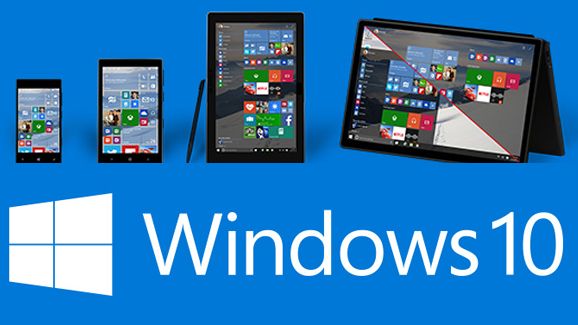
As you might already have heard, Microsoft is planning to make the new operating system run on all devices. That is, with the official release of the new operating system, all the newer devices that use Windows software will be working on the same platform. The new addition of features from Windows Phone is just an example of this and we might soon see more features from other similar Windows platforms too.
The DataSense technology is not completely implemented in the operating system. However, with the technology, it is possible to keep a track of the data usage with the device. The technology also gives you options to limit the use of background data when the data use is nearing the monthly limit. Now, we have already seen the battery saver function on Windows Phone devices. When this feature is integrated on the new operating system, the program cuts down the amount of activities running in the background and makes changes to the hardware settings for maximum power saving. Even though this feature would be great for a laptop or a tablet, it may not be of any use when it comes to desktop PCs.
Windows Tech Support
Windows 10 Installation

Microsoft is also making changes to the interface of the operating system. You will see a pop up on the screen whenever you open or close the file explorer windows or apps. There is also an animation when you move from one virtual desktop to another. Even though these changes might look to be very small, it is clear that Microsoft is going to continue adding more features and will introduce many more changes to the interface soon.
Keep in mind that Windows 10 technical preview was released just a few weeks before and therefore, we can expect many updates and changes to be added in the coming weeks. You may download the preview from the official website of Microsoft. For further assistance on the preview, you may go through the Windows tech support forums.


Configuring Dual Monitors In Microsoft Windows XP

Windows XP offers several functions to its users including the support for ten different monitors at a same time. This gives you the option to use different application in each screen and moreover the application window can be stretched to more than one screen. Here, Windows considers these two monitors as one by extending the desktop to the other monitor that is connected. In addition, one monitor will act as primary monitor whereas the other will act as a secondary one. Given below are some windows tech support guidelines to configure two monitors in Windows XP.
Instructions
·         At the end of the each computer monitor’s display cables, you will find the connectors. Locate it and after locating it, you need to connect it to the display ports that are seen on the backside of your laptop or desktop computer. Keep in mind to connect the cables that matches the ports/ Video graphics array or digital visual interface connectors are generally used by the monitors. It is easy to identify both VGA and DVI connectors as the VGA connectors appear small, will be blue in color whereas DVI connectors are generally white in color, and are much larger. 
·         Navigate to an empty space in the Windows desktop and right click there. From the list of options available, choose Properties.
·         From the Display properties window that appears on your screen, you need to click the tab called Settings.
·         In order to display a number on each of your monitors, you need to click the button called Identify.
·         To position the monitors, you need to drag and drop the computer monitor icons. For e.g. if you are keeping monitor on top of each other, then you need to place the monitor icon on top of each other whereas if you are setting up side by side, then you need to move the icon displaying left monitor to the left of the icon that represents right monitor. Thus, the way in which the windows are moved between each monitor is determined by this layout.
·         By clicking the icon for monitor, you need to set a primary monitor. Put a tick mark to the box that is labeled Use This Device as the Primary Monitor.
·         Next, click the icon for second monitor and also check mark the box called Extend My Windows Desktop Onto This Monitor.
These instructions given by the Windows tech support team will help you to configure multiple monitors in Windows XP computer. For further information regarding Windows XP support, contact Windows tech support number.