Windows 10 Tips and Tricks

1] Make Windows 10 behave the way you want it to
Besides Control Panel, Windows 10 has an easy to use PC Settings window where you can easily change and control the settings related to Windows Updates, Networks, Apps, etc. Manage your System, change Network and Internet Settings, change Windows 10 Privacy settings, manage your Devices, Personalize your PC, manage your User Accounts, set your Time & language, use tools for the differently abled and manage Windows Update and Security here. To know what all changes you can make from PC Settings window, read How to open and use Windows 10 Settings app.
2] Open individual settings using Desktop shortcuts
You can create Desktop shortcuts or Context Menu items to open various Settings in Windows 10. See the URI for Settings apps that open the particular Settings page directly.
3] Edge browser tips and tricks
There is much to Microsoft Edge than what appears. At the core of Edge is the EDGEHTML rendering engine that was developed from scratch to provide a better browser. These Edge browser tips and tricks will make you an Edge ninja!
4] Using Internet Explorer in Windows 10
The default browser in Windows 10 is the all-new Edge. Windows 10 also contains Internet Explorer for legacy purposes which I think will be continued to be used for a considerable time to come. This tip will show you how to open Internet Explorer in Windows 10.
5] Using Cortana in Windows 10
Windows 10 features Cortana, a personal assistant that goes as far to provide you with local information and replace typing in Windows 10 taskbar search box with voice. To give you an idea of how it works, it is like Apple’s Siri. Check out how to set up Cortana in Windows 10 to start using it. If you do not use it, you can disable Cortana. Know how to use Cortana in Edge? There are many Cortana Tips and Tricks here.
6] Make File Explorer open to This PC instead of Quick Access
Windows 10 users may have noticed that by default, File Explorer opens to Quick Access. Make Explorer open his PC folder. If you don’t use it, you may disable Quick Access.
7] Booting in Safe Mode

This post will show you how to enable and start or boot Windows 10 in Safe Mode. There may be other ways, but we will cover only 2 of the most convenient ways.
8] Change the look of Windows 10 Start Menu
The Start menu in Windows 10 is divided into two parts: one contains apps and settings, the other part towards the right allows displays live tiles and allows you to pin apps in groups. Check out how to customize Start Menu in Windows 10 to be able to customize Start menu according to your interest and ease of usage.
9] Make Start more private
The major components of Start Menu in Windows 10 are Most Used List, Recent Programs List, PC Settings, Power Options, and Apps Sub-menu. Show or Hide Recently added apps group. Remove Most Used list from the Start Menu in Windows 10.
10] Enable Start Screen or Full-screen Start
Miss the Start Screen? You can enable Start Screen by enabling the Tablet Mode. If wish to enable Start Screen without enabling the Tablet Mode, then the best option for you would be to enable full-screen Start.

How to Optimize and Speed Up Windows 7 Performance

Need to improve and speed up Windows 7 performance? Let’s talk about how you can do this by customizing and tuning some Windows features. Some of these options are also available in Windows 8 and Server Editions; that’s why I think this article is a good starting point in improving all Windows OS performance. I don’t know how many of you encountered slow performance, errors or even blue screens when running Windows platform, but I’ve been working with Windows 7 and previous editions for quite a while now and I can definitely say that the default settings of this OS can be tuned so that better results in terms of performance can be achieved.
I won’t talk about improving your hardware components because you may already know that without a proper hardware configuration, your tuning may have no effect. Consider improving your physical memory, CPU and Video Card where necessary. Check out the recommended Windows 7 configuration and compare it with yours. My home computer has around 4 Gb of RAM and Intel I3 processor and I have no problems running this version of Windows. Of course, when running applications that use of lot of resources (rendering software, Video games) I sometimes encounter slow performance. You should choose your hardware configuration according to your needs (what applications are you going to use on your workstation). I advise you buy and install an SSD hard-drive for your computer’s OS. After installing Windows 7 on the SSD drive, my computer performance increased significantly that’s why I recommend this upgrade to anyone.

#1. Run disk cleanup, Defrag and check disk

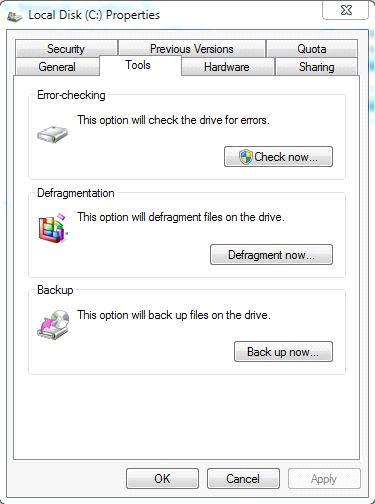
These tools are used to speed up the performance of your hard disk. To achieve this, right click on the desired partition (where the OS is installed) and then click “Properties”. Now select the “Tools” tab and click on one of the tools listed here:
Defrag Drive Files
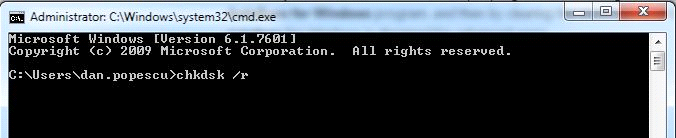
The “Disk defragmentation tool” will align data blocks written on your hard drive in order to make them easier to be accessed by the OS. The “Error-checking” tool will fix any bugs from your hard-disk. I prefer running the command line tool rather than using the GUI. Open “command prompt” and type the following:
Command Prompt /r
The “/r” parameter will locate bad sectors and will recover readable data, but also will fix disk errors.
Note that these tools will take a while to finish their operation.
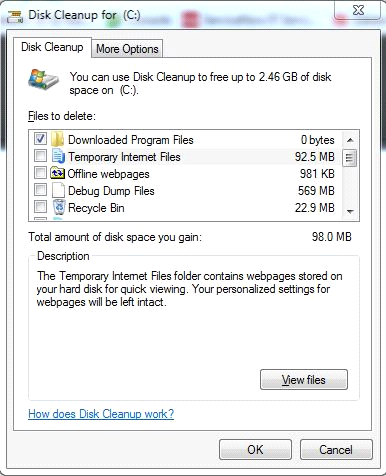
The “Disk Cleanup” tool is used to delete unnecessary data stored on your computer, such as temporary internet files, thumbnails, debug dump files, etc. To open this tool simply type “Disk Cleanup” in the search bar. You will then be prompted to enter a disk partition on which the tool will execute. After calculating the disk space gained, you will be redirected to the following screen:
Disk Cleanup
Check all the things that you want to remove and then click the “OK” button.

#2. Disable unnecessary visual effects

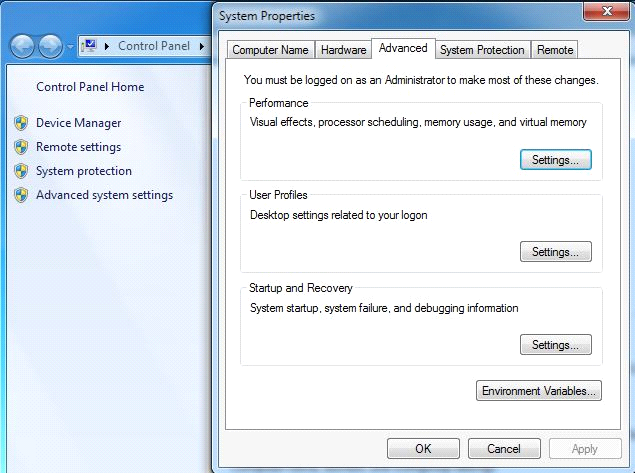
As you may already know, Windows comes by default with some visual effects activated. Features like Windows Aero, shadows or thumbnails can be disabled to boost your computer’s performance. Right click “My Computer” and then select “Properties”. After the window opens, click the “Advanced system settings” button from the right side. You will then be prompted to the following screen:
Visual Effects Performance
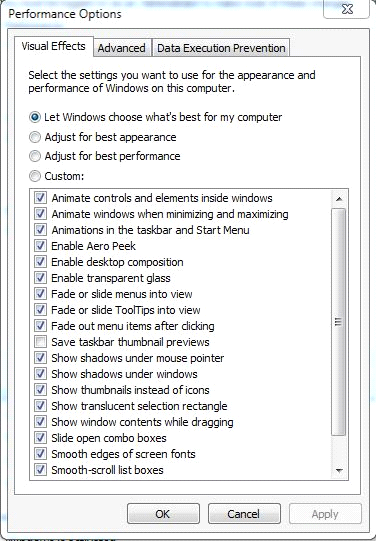
In the “Performance tab” click the “Settings” button. Next, select an option from the ones available. You can adjust your settings for “best performance”, “best appearance” or select the features that you want to activate one by one:
Performance Options

#3. Update Windows with the latest definitions

One important step in optimizing your computer’s performance is by installing the latest updates. At least, critical and security updates must be applied so that you can better prevent and fix bugs, errors, malicious software installation or intrusions. Note that Microsoft often releases updates to fix some known bugs that exist on a fresh Windows installation. Some of these updates can even fix and optimize performance issues.
To install the latest updates go to “Control Panel\System and Security\Windows Update” and then click the “Check for updates” button. Wait until Windows finds all available updates and then select the ones that you want to install. In the end, you will probably have to restart your workstation.

#4. Disable unused programs that run at startup

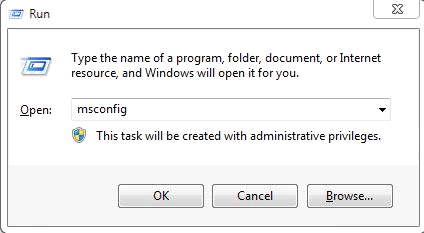
Remember, your computer may probably run software that is not needed all the time. Some of these programs can be disabled to increase speed. For achieving this, I prefer using the Microsoft System Configuration Utility tool. You can run it by typing “Msconfig” from the run prompt:
Run Prompt
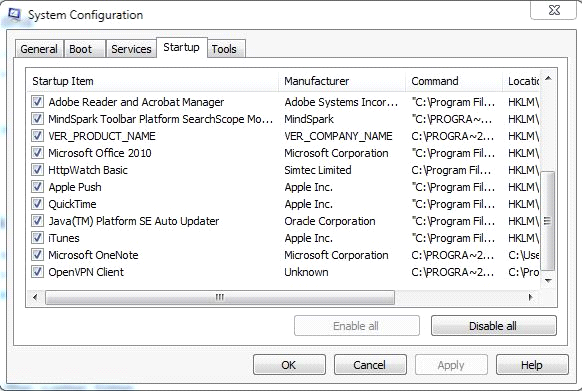
Navigate to the “Startup” tab and then deselect the programs that are not mandatory:
SysConfig Startup
For instance, iTunes, QuickTime and Adobe Manager can be disabled to improve your computer’s performance. Remember that these programs may run in the back, so as a user you may not be aware of the running processes.

#5. Disable unused Windows Services

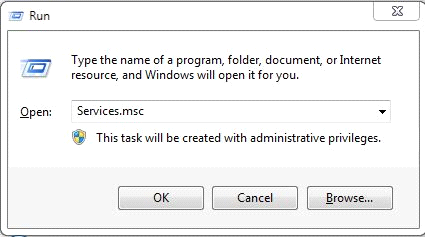
You can also optimize computer’s performance by disabling unused Windows services. By disabling them you increase the available RAM memory and CPU. Open the “Services” console in any way you prefer (I’m used to open the Services console by typing Services.msc from the run prompt):
Command Prompt Services.msc
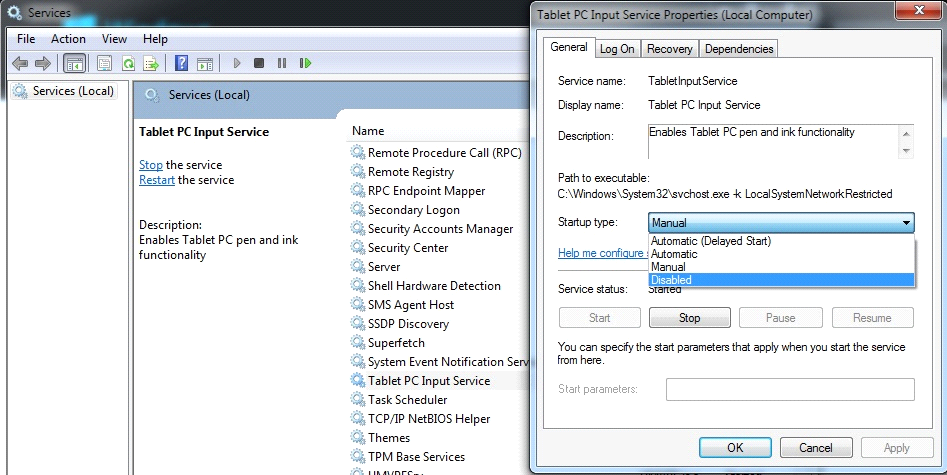
Select the services that you want to disable, right click them and then select “Properties”. From the following window you can set the service “Startup type” to “Disabled”. Check the following image:
Disable Windows Services
Services like Tablet PC input Service or Windows Indexing Service can be disabled if you don’t need them.

#6. Scan your computer for malware

In many occasions, your computer can have low performance because it may be infected with viruses. The best method of dealing with viruses is by installing an antivirus program and run it on a regular basis. In Windows 7, you can install Microsoft Security Essentials for free and it will do the job perfectly. You can always choose another security software such as AVG, Nod32, Kaspersky, etc.
I also use “Malwarebytes” to scan for malware. This tool can be used for free a period of time before registering or buying it. I’ve worked with this software and I would it recommend to anyone. Many of the malware exited on my computer were detected and cleaned using this tool.

#7. Use CCleaner or any other optimizing software

This tool is very powerful and can be used to significantly improve your computer’s speed. It is a freeware software available for download from http://www.piriform.com/ccleaner. This program will scan all areas of your computer and will clean and fix things like registry keys, temporary files, recycle bin, history and cookies etc.

5 Tips to Speed up Your Windows 10 on Old PC

With an increasing number of Windows users upgrading their OS to Windows 10, it is crucial for them to know how to optimize their operating systems. Many users installed or upgraded Windows 10 on their current aged laptops or desktops, which is likely to affect the performance of running Windows 10. Old computers which come with old drive are able to perform Windows 10, yet you may encounter slow running speed especially when you launch some certain programs which with big cache files.

Purchase new PC would be an acceptable solution, but it isn’t suitable for every Windows user. More attention should be paid to optimizing existing PC. Follow these five tips below to speed up your Windows 10 now.

#1. Clean Windows.old folder

You will find a folder named Windows.old in C drive after upgrading. If you confirm that you will use Windows 10 for ever, then delete this folder. Right click C drive and select Properties. Then click Disk Cleanup.

#2. Close Login password

Windows 10 sets up password for system security, nevertheless it prolong desktop loading time. You can change this setting to save loading time. If your PC could be accessed by others, then think twice.

Press Windows key + R at the same time to open Run box. Type netplwiz and hit Enter. Uncheck Users must enter a user name and password to use this computer box, and click Apply. It will ask you to type password in the pop-up window to confirm this operation.


#3. Close IPv6

IPv6 is the abbreviation of Internet Protocol Version 6, which hasn’t been popularized in the world. This protocol started since 2012, but its penetration is less than 30 % after 4 yeas’ development. This is not saying IPv6 is not good enough, but its development is closely linked with state policy. Anyway, to open IPv6 will lengthen the time of connecting network and close it won’t affect the use of network since we still have IPv4.

Go Start -> Control Panel -> Network and Internet -> Network Connections. Double click Ethernet0, click Properties, and then uncheck Internet Protocol Version 6 (TCP/IPv6) box.


#4. Close unnecessary Visual Effects

Visual Effects in Windows 10 could improve user experience, but it is not necessary on PC with old drives. Close it to reduce loading time.

Double click This PC on the desktop, and click System properties -> Advanced system settings -> Settings. Uncheck Fade out menu items after clicking box.

#5. Disable Virtual Memory

To disable Virtual Memory in Windows 10 could reduce reading and writing times to hard disk. Besides, local memory has faster data transfer speed than virtual memory. If your hard drive holds enough capacity, just disable this setting.

Follow the steps in Tip #4 to Settings. Click Advanced next to Visual Effects, and click Change. Then uncheck Automatically manage paging file size for all drives box and pitch on No paging file and click Set.


With these 5 tips, you can speed up your Windows 10 on PC with old drives and running Windows 10 at better experience. Many users also deal with Windows 10 slow speed issue using another solution, upgrade HDD with SSD or new hard drive. But you need to choose the right software while clone boot drive to SSD.

Create your own music playlist using YouTube

YouTube has become a great source of finding music on the Internet and with the ability to create playlists it can also be a great free way to listen to music. Search YouTube for any song or artist you enjoy and click the Add to button. In the Add to menu check the playlist you want to add the song to or click Create new playlist to create a new playlist. For example, you could have a playlist of songs you enjoy listening to while you workout or a playlist you want to play at a party.
Once the playlist has been created while logged into your YouTube account open your playlists and then click Play all to start playing the playlist from the first video. If while playing you do not like the song being played click the Next button or press the End key to go to the next video in your playlist.
If you want to work while playing a playlist keep YouTube open in another tab of your browser.

How to access shut down menu using a keyboard shortcut

Once you get used to them, keyboard shortcut combinations can make your computing life easier and more efficient. If you need to log off of a Windows account, change users, or shut down or restart Windows:
  1. Press the Windows key + D to go to the desktop, and then press Alt + F4 to bring up the Shut down menu.
  2. Use the arrow keys to select the appropriate action, press Tab until OK is highlighted, and then press Enter.

The Best Features Of Windows 10

Windows 10 OS
Windows 10 Features
The Windows 10 OS is now available as a Technical Preview build for the users of the Windows Insider program. This build gives users a preview on how the OS would feel like once it is released to the public in April 2015. The users also get to take part in the development process of the OS by providing apt feedback and suggestions while using the Technical Preview build. New build releases are released as over the air updates every now and then. Windows 10 really looks promising, and some of the interesting features that you can expect are listed below.
Cortana
The popular personal assistant that was first introduced in Windows mobile is now coming to the Windows 10 OS. Cortana is similar to the Siri app of Apple, which provides a personalized experience while providing help working with the various features in the OS. Cortana primarily boasts of powerful search and reminder capabilities, which we have already seen in Windows mobiles. Microsoft says "you’ll see Cortana as never before" as the app will be used as the primary search app for all of the Windows platform users, both mobile and desktop. Moreover, unlike the mechanical tone of the Siri and Google Now apps, Cortana flaunts natural and conversational tones now.
Design and Interface
Much attention has been given on the interface part this time around. This extra caution can be attributed to the disastrous stride that Windows 8 series of operating systems took. The company has promised the return of the traditional Start menu, which kind of faded away or became molded into other things in the Windows 8 series. In the latest demonstrations, we could see new and modern style icons all around the OS. The Windows have flattened, and it really does feel like an all new OS, much more than an upgrade.
Project Spartan
Windows Insider Program
Windows 10 Upgrade
Microsoft has been working hard to develop an all-new browser for some time. In addition, the news regarding the Project Spartan is out now. Project Spartan is expected to be the default web browser in Windows 10. However, it is not clear yet whether this will mark the death of the age-old Internet Explorer web browser. In Spartan, there are new features for touch and annotation purposes. Just circle your fingers around something and the text will be highlighted.

Critics and analysts are of the opinion that the upcoming OS is indeed going to be a hit. Once it is released, it is only up to the users to decide what the company's future would be. 

Word 2013 Boasts Exciting New Features

Microsoft Word 2013
Microsoft Word Help
Word is an application included in Microsoft Office suite. It is used all across the globe for word processing needs. MS Word is compatible with most of the operating systems available today. It is stuffed with several options and features which you can use for improving the outcome.
The latest version of Word is the quite impressive because of the new features in it. Word 2013 is touch screen friendly and comes with several new features for document creation, editing, collaboration, reading, etc. Here are some of the new features of MS Word 2013.
New Looks
When you launch Word 2013 for the first time, the first thing you notice would be its new look. Yes, Word 2013 looks great with its touch
screen friendly user interface. When the application is launched, a startup screen will appear instead of the blank page you used to see in the older versions. Going to the left side of the screen, you would find a list of recently completed or edited files. The right side of the pane contains the templates that you can choose from. This includes flayer, blog post, etc.
Advanced Help Options
Word 2013 comes with advanced help options. There is a 24-hour active Microsoft Word help line, which you can contact at any time and get the issues fixed. Besides that, there is Microsoft Word support forum where you can raise your issues or doubts and get solutions from expert.
Design Tab
Word 2013 comes with a new design tab. Using this tab, you can choose themes, colors, fonts, etc., as you wish. Another good side of the design tab is that it has simplified word formatting.
Layout Options
Microsoft Word
Microsoft Word Support Desk
Lining up objects and images in Word 2013 is easier due to the integration of the new Alignment Guides. The illustrated guide takes you through the steps of aligning or including SmartArt illustration, chart, image, etc., in your document.

Word 2013 is the finest of all the MS Word versions available at the moment. It may take a while for one to get started with using Word 2013. However, it is worth the effort. Contact Microsoft Word support desk or visit Word support forums to find more details like how to use this version, how to troubleshoot Word issues etc. Get started with using Word 2013 today itself.

Google Search Tips !


You can make your search more efficient by learning some search basics !

Try these tips :
1. Use Of '+' sign : This ensures that the results returned to you will defiantly consist of the word following the '+' sign. For Eg :
Search: reviews of +iPhone and iPod
This will show results containing the word reviews or but the results will definatly consist of iPhone !

2. Use Of '-' sign :
Using '-' sign before any word will ensure that the particular word will not be included in the results !
3. Use Of '~' sign :
Using '~' before any word will return the results also containing the synonyms of the word !

4. Search a particular site :
To search a particular website you can use the following syntax in the google search :
Search: site:www.xyz.com abc
For Eg :
Search: site:http://pcremix.blogspot.com/ Google Search Tips

5. Define a word :
To get the definition of a word just use :
Search: define:abc
For Eg : Search: define:Computer
This will return you results which define 'Computer'.

6. Find Pages similar to a page :
To find a page similar i.e. consisting of same type of content, use the following syntax :
Search: related:http://www.xyz.com/

7. Search for exact phrase :
To search a set of words exactly together i.e.
For Eg :
Search: "contact us"
This will return the results containing both contact and together !

8. Using the wild card '*' :
The * sign can be used in places where the whole word is not known.
For Eg:
Search: friend*
This will return the results containing friend , friends , friendship.

9. Using the '?' sign :
This is used when the full spelling of the word is not known.
For Eg:
Search: fri??d
This will result that in the results in which any alphabet can take the place of '?' sign.

10. Use of boolean operators :
The boolean operators like AND,OR,NOT can be used in search box to connect the words !
The search engine understands them as what they mean but the must be in capital letters !
For Eg:
Search: swim OR float
This will return the results containing either swim or float !

Windows 10 will be Free for Windows 7 and Windows 8/8.1 Users

Update: After clarification from Microsoft, it is clear that Pirated Users won’t get the free upgrade.
The world is eagerly waiting for the complete official release of Windows 10. While at first, only licensed users were excited for it but, now even pirated users have something good to wait for. According to Terry Myerson, Microsoft’s Windows chief, the upgraded version of Windows can be used by all genuine and non-genuine users. This means if you are using pirated version of Windows 7 and Windows 8, you can still upgrade to Windows 10. This amazing announcement was made at the WInHEC conference in Shenzhen, China.
The announcement came as a surprise as earlier Microsoft said that PCs running on Windows 7/8.1 will get free upgrades to Windows 10 for the first year but only after the product is released. This decision has surely left many answered questions. One of the biggest question is that whether the pirated users will get the update like the licensed user or he will have to wait for a year. It is confirmed that this plan to allow free upgrades for pirated users applies to all over the world and is not just limited to China.
Windows-10-logo
Although, it should be noted that Microsoft has a long history with software piracy. Windows XP was the first ever operating system which needed license key for verification. However, this concept was soon defeated by using corporate license key which was shared on the internet. Microsoft has tried its best to stop piracy but whenever the company comes up with a new way to stop it, pirates find another way to bypass it. The most shocking thing is that many new machines comes with a pirated software and the customer don’t have any slight idea that he is actually using an illegal copy.
The company has still not declared any exact date for the release of Windows 10 as even this time they announced that, Windows 10 will be launched in 190 countries and 111 languages around the world this summer. Now, this is interesting as in the Northern part of the world, summer ends on September 21. And, according to this new announcement, the company has only six months to deliver it as free upgrade to millions of users.
There is no doubt in the fact that this is a great news for all the users who enjoy the pirated version of Windows. However, the bigger question which remains unanswered is that, whether Windows is actually trying to stop piracy or promote piracy. Nothing can be said until and unless, the software gets released. Till then we can only say that it seems like Microsoft has finally accepted that it is unable to curb piracy. Now, may be it is some kind of plan or strategy by the company but for pirated users, there cannot be a better news than this.

3 Tricks to Make Your Windows 10 Copy Run Faster

Microsoft has not yet released Windows 10 officially, but a Technical Preview is already out and not much is expected to change in terms of functionality even in final version. So until Microsoft releases the final version, why not we exercise some speed-boosting tricks on this preview so we can make our Windows 10 copies run to their true potential from Day #1. In this article we’ll try some of those tricks.

Disable Useless Animations, Graphics and Shadows

Like most other versions of Windows, Microsoft has loaded plenty of eye-candy in this version too. Disabling some of it will definitely make Windows 10 copy run faster. Given below are the steps that you can follow to do so:
  • In this window click on Advanced tab.
  • Hit Win+R on your keyboard, type sysdm.cpl in that dialog box and hitEnter. This will launch the System Properties window before you.
  • Under this tab there’ll be settings buttons for 3 different groups. Click on the first button under Performance group.
settings button
  • Now uncheck all the checkboxes highlighted by the yellow color in the screenshot given below and hit OK button to save your changes.
disable animations
Once you save these changes, actions associated with them will execute almost instantly without waiting for the completion of that eye-candy animation.

Disable Useless Services

Now let’s disable some useless services that run all the time sucking valuable system resources and thus make Windows run a bit slower than its true potential. There’re several services that’re not too important and can be disabled to boost system performance. For example:
Distributed Link Tracking Client
This service is for computers that’re part of a network, which is found mainly in organizations or colleges. If your computer isn’t part of any network, which is true for most PC users, then you can disable it to make your system run faster.
Print Spooler
This service is used if you’ve a printer. If you don’t have any printer, don’t give it a damn!
IP Helper and Offline Files
Just like first service in our list, if your computer isn’t part of any network then these service are of no use to you.
Remote Registry
This function allows any user to remotely modify your computer’s Windows Registry – only if that person has a user account with Administrator rights! Why would you give them to someone else? So why not disable this service permanently?
To disable any of these services follow the steps given below:
  1. Hit Win+R on your keyboard, type compmgmt.msc  and hit Enter.
  2. A Computer Management window will open up now. In the hierarchy given on left side of this window click on Service and Applications link to expand it, and then click on Services.
  3. This will show you a list of all the services that’re running. Right-click on every service that you don’t want to be running and click on Stop.
  4. Now if you want to disable that service permanently, right-click it once again, click on Properties and select “Disabled” from Startup type menu.
stopping services
That’s it for useless Services!

Disable Useless Startup Programs

Finally, disable some useless startup programs that start with Windows. This will make your computer boot faster. Follow the steps outlined below:
disable startup programs